Using the QuickChart Word Cloud API
QuickChart provides an API that generates word clouds or tag clouds, visualizations that give prominence to words that appear frequently in a given text.
Getting started
The word cloud API endpoint is available at https://quickchart.io/wordcloud. Here's a simple example that is embedded on this page straight from the API:
The only required parameter of the word cloud API is text. Set it in your URL:
https://quickchart.io/wordcloud?text=To be or not to be, that is the question
API options
There are many ways to customize your word cloud. Here are all the options offered by the API:
| Parameter | Description | Default |
|---|---|---|
| text | Text of the word cloud | (required) |
| format | Image output format - svg or png | svg |
| width | Image width | 600 |
| height | Image height | 600 |
| backgroundColor | Background color of image (rgb, hsl, hex, or name value) | transparent |
| fontFamily | Font family to use | serif |
| fontWeight | Font weight to use. Note that not all fonts support all weights | normal |
| loadGoogleFonts | Google Fonts to load | |
| fontScale | Size of the largest font (roughly) | 25 |
| scale | Frequency scaling method - linear, sqrt, or log | linear |
| padding | Padding between words, in pixels | 2 |
| rotation | Maximum angle of rotation for words | 20 |
| maxNumWords | Maximum number of words to show. Note that fewer may be shown depending on size. | 200 |
| minWordLength | Minimum character length of each word to include. | 1 |
| case | Force words to this case - upper, lower, or none | lower |
| colors | List of colors for words in JSON format, assigned randomly. e.g. ["red", "#00ff00", "rgba(0, 0, 255, 1.0)"] | random |
| removeStopwords | If true, remove common words from the cloud | false |
| cleanWords | If true, removes symbols and extra characters from words | true |
| language | Two-letter language code of stopwords to remove (supported languages) | en |
| useWordList | If true, treat text as a comma-separated list of words or phrases instead of trying to split the text on our side | false |
width and height are capped at 3000 pixels, and maxNumWords is capped at 200. Only SVG and PNG output are supported; other formats return HTTP 400. See error handling for how to read the error message.
Examples
Lincoln's speech
Let's do a word cloud of Lincoln's famous Gettysburg address:
It looks pretty great by default! All I did was put Lincoln's speech in the URL, https://quickchart.io/wordcloud?text=Four score and seven years ago...
Churchill's speech
Now, let's say we want to do a tag cloud of Churchill's famous "we shall fight on the beaches" Dunkirk speech. This is a long speech that is too big to fit in a URL, so we will instead use a POST request to send the data.
Because I'm doing this on the command line, I'll first create a file churchill.json with the following JSON contents:
{
  "format": "png",
  "width": 1000,
  "height": 1000,
  "fontFamily": "sans-serif",
  "fontScale": 15,
  "scale": "linear",
  "text": "<churchill's full speech...>"
}
Then POST it to the API endpoint using curl:
curl -X POST -H 'Content-Type: application/json' https://quickchart.io/wordcloud -d @churchill.json -o churchill.png
This downloads churchill.png, which looks like this:
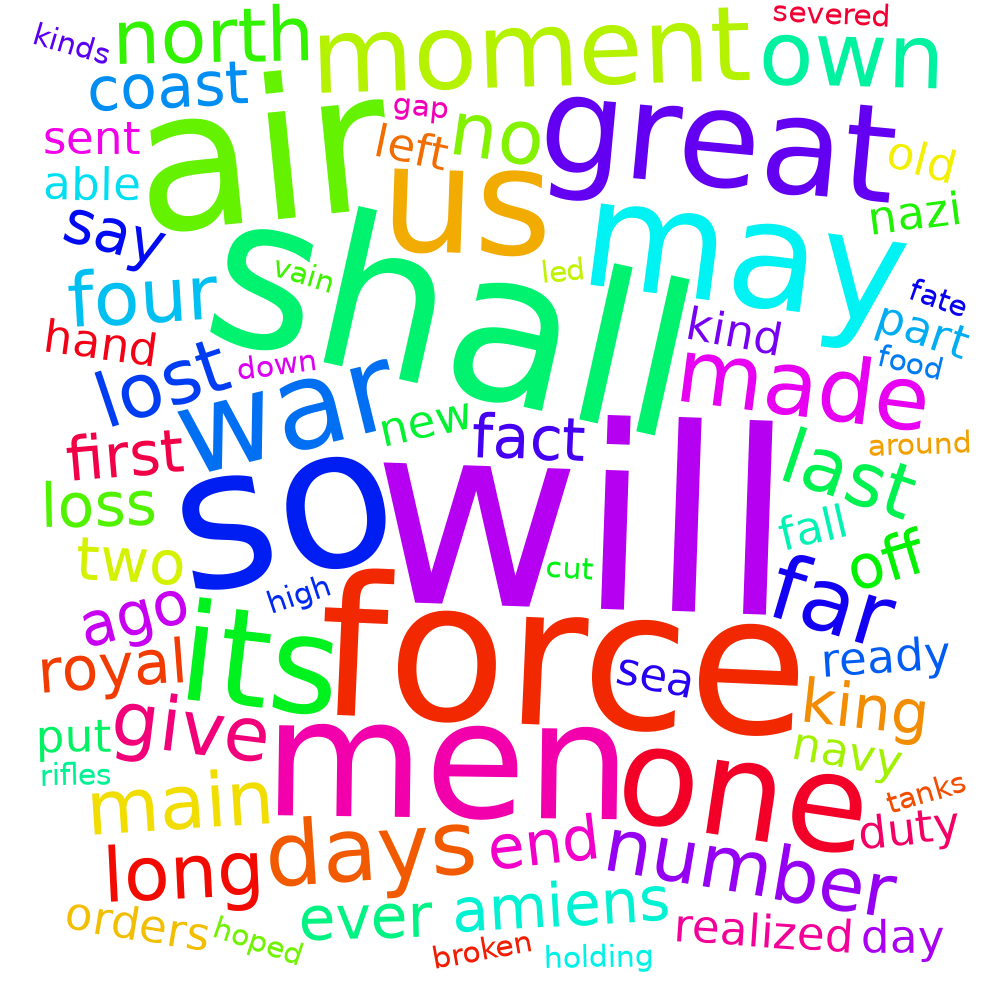
Even though I used the command line and curl, you can easily do this in any programming language. Just send an HTTP POST request in your language of choice.
A website
You can create a word cloud with any sort of content, including from a webpage. Here's a quick tutorial from the command line.
Let's make a word cloud of Alice's Adventures in Wonderland, using the HTML edition on Project Gutenberg.
We'll use Python to download the page and Beautiful Soup to extract its paragraphs. First, install the dependencies:
pip install requests beautifulsoup4
Then fetch the text:
import requests
from bs4 import BeautifulSoup

resp = requests.get('https://www.gutenberg.org/files/11/11-h/11-h.htm')
resp.raise_for_status()
soup = BeautifulSoup(resp.content, 'html.parser')
article = ' '.join(p.get_text(' ', strip=True) for p in soup.select('.chapter p'))
Now, create a POST request to the word cloud API with the article content and write it to a file:
resp = requests.post('https://quickchart.io/wordcloud', json={
    'format': 'png',
    'width': 1000,
    'height': 1000,
    'fontScale': 15,
    'scale': 'linear',
    'removeStopwords': True,
    'minWordLength': 4,
    'text': article,
})

resp.raise_for_status()

with open('wordcloud.png', 'wb') as f:
    f.write(resp.content)
Here is the output saved to wordcloud.png:
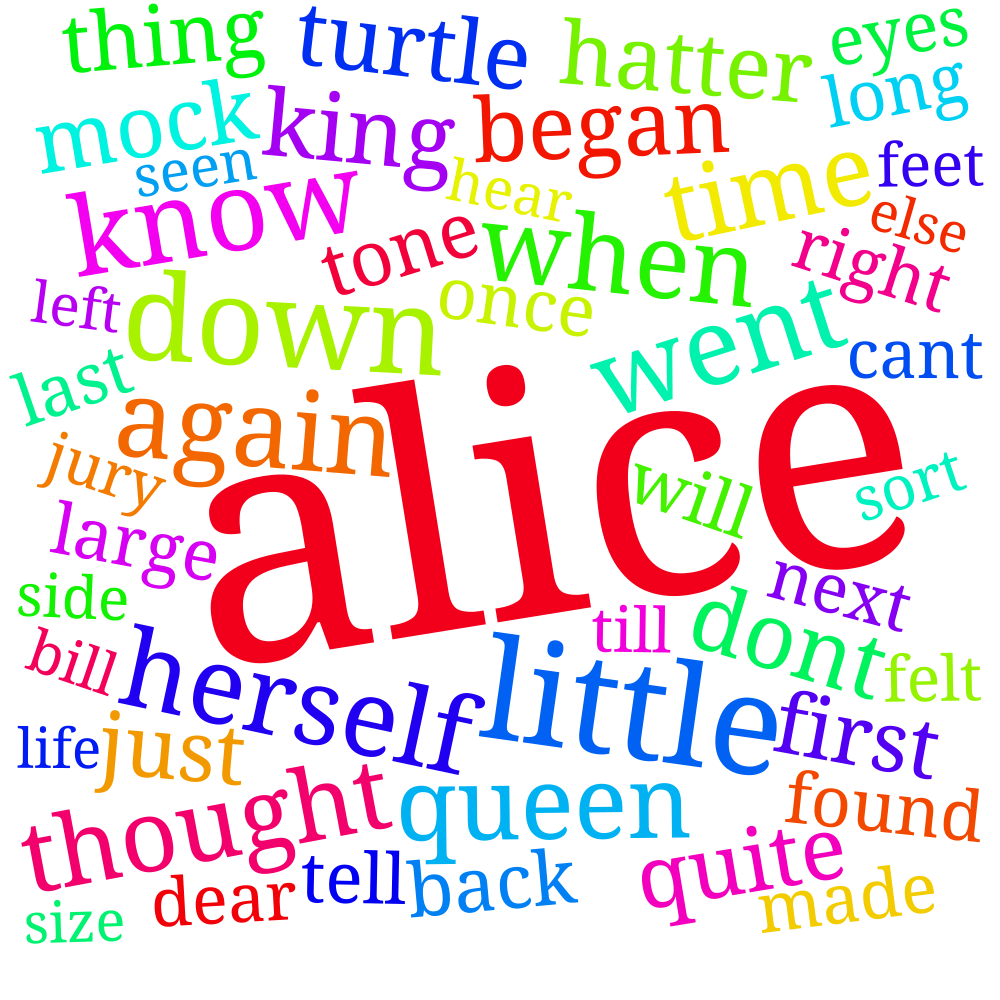
To use another page, change the URL and the CSS selector so that you extract the article text without navigation or other page content.
Using custom fonts
⚠️ This section applies to SVG format images only!
A few basic font families such as sans, sans-serif, and monospace are available by default.
If you wish to use more exotic fonts, use the loadGoogleFonts parameter to instruct the renderer to make Google Fonts available in your word cloud.
For example, the following payload will use the Roboto font:
{
  "loadGoogleFonts": "Roboto",
  "fontFamily": "Roboto",

  "format": "svg",
  "width": 1000,
  "height": 1000,
  "fontScale": 15,
  "scale": "linear",
  "text": "..."
}
You may also specify font weights, such as Roboto:300.
Controlling the word list
Maintain greater control over the parsing of your words by setting useWordList to true. When word list is enabled, the API treats text as a comma-separated list of words. For example:
hello,world,testing,123,hello,world
Optionally include word counts (otherwise the count is assumed to be 1):
hello:10,world:5,testing:5,123
To preserve words as you entered them, set cleanWords to false and case to none.
Conclusion
QuickChart's word cloud API is one of the most flexible web services out there that can allow you to create word clouds programmatically without any dependencies. What will you build? Feel free to reach out to reach out with questions, feature requests, or to share interesting word clouds!
